
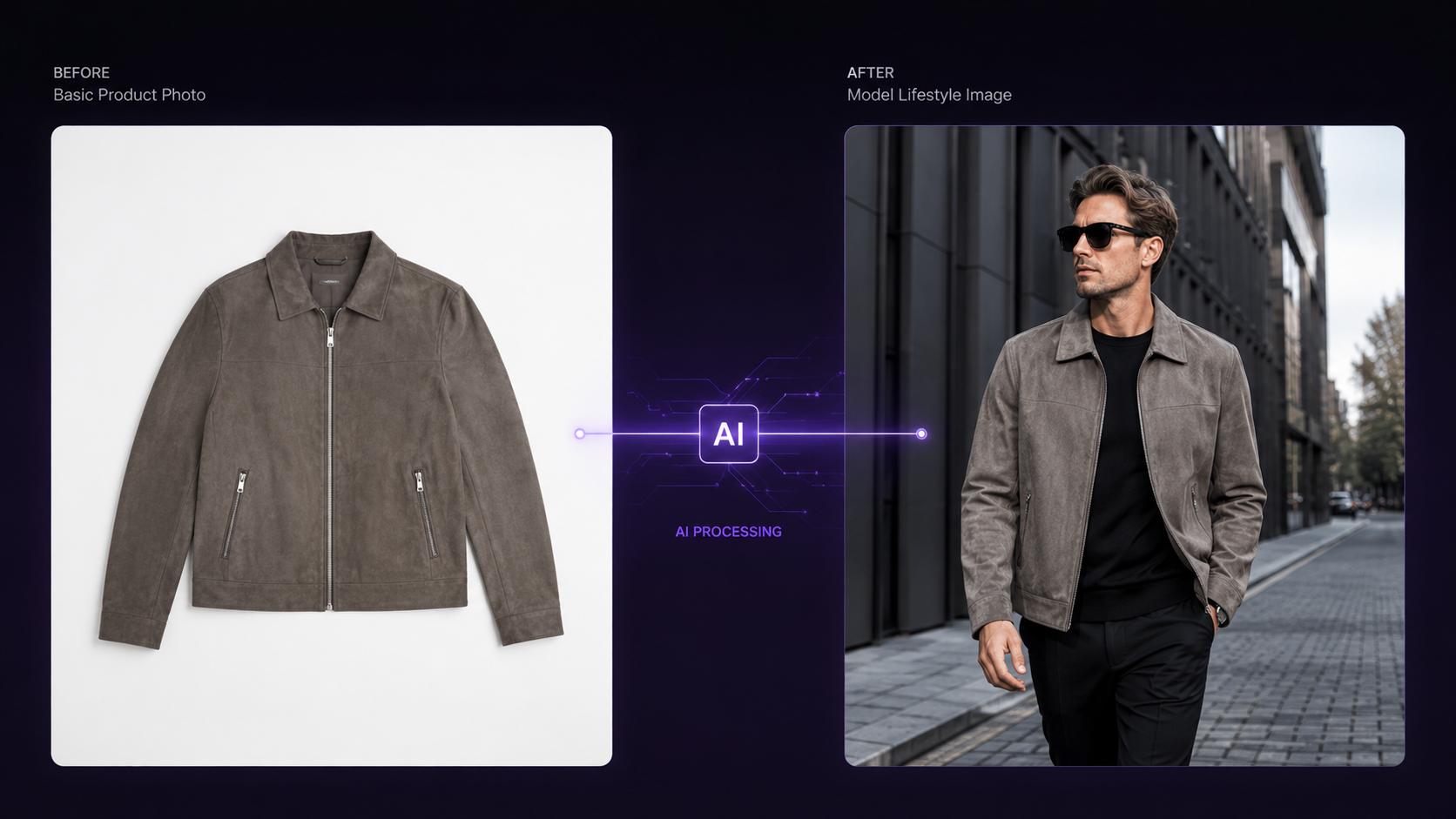
Professional product photography used to require a studio, lighting equipment, a photographer, and hours of retouching. Today, AI product photo generators can produce the same quality results from a basic smartphone shot — in seconds, for a fraction of the cost.
Here's how to get there yourself, from the moment you snap the photo to the final 4K image that goes live on your store.
What Can an AI Product Photo Generator Do?
Modern AI product photo tools can transform a basic product image into professional commercial photography by:
- Removing backgrounds: instant isolation on white or transparent
- Adding studio backgrounds: professional lighting, shadows, and surfaces
- Creating lifestyle scenes: place products in realistic environments
- Generating model shots: put clothing on virtual models automatically
- Upscaling to 4K: enlarge images for print and high-DPI displays
- Batch processing: handle hundreds of SKUs in a single session
Step-by-Step: From Phone Photo to Commercial Image
Step 1: Capture Your Product
You don't need expensive equipment. A smartphone with good lighting is enough:
- Use natural daylight or a simple ring light
- Place the product on a clean, neutral surface
- Shoot from multiple angles: front, side, detail
- Avoid harsh shadows and cluttered backgrounds
Step 2: Remove the Background
Upload your image to the Image Remove BG tool. This is a one-click process that produces a clean transparent background in seconds. It's completely free — no credits required.
Step 3: Generate a Professional Background
Choose your approach based on the platform and purpose:
| Platform | Recommended Background | Tool to Use |
|---|---|---|
| Amazon / Shopify | Clean white (#FFFFFF) | Change Background |
| Instagram / Social | Lifestyle scene | Scene Styling Model |
| Website hero banner | Cinematic / branded | Scene Styling Model |
| Print catalogue | Studio gradient | Change Background |
Step 4: Enhance and Upscale
For hero images and print materials, run the output through our 4K Upscale tool. Neural super-resolution adds genuine detail — it doesn't just stretch pixels.
Step 5: Erase Any Imperfections
Use the Erase / Inpaint tool to remove any dust, scratches, or unwanted elements from the product image. Paint over the area you want cleaned, and the AI fills it naturally.
AI Product Photography for Different Categories
Fashion and Clothing
Upload a flat-lay and use Virtual Try-On to place it on an AI model. Add Scene Styling for lifestyle settings. Cost: ~$1 per complete look.
Jewellery and Accessories
Use Change Background to place items on elegant surfaces — marble, velvet, brushed metal. The AI adds realistic reflections and shadows automatically.
Electronics and Tech
Use Scene Styling to create clean, modern workspace scenes. The tool handles reflections on glossy surfaces naturally.
Food and Beverage
Change Background can place food products in kitchen, dining, or outdoor picnic scenes with matched lighting and natural styling.
E-Commerce Image Requirements by Platform
| Platform | Main Image | Min Resolution | Background |
|---|---|---|---|
| Amazon | Pure white background | 1000×1000 px | #FFFFFF required |
| Shopify | Flexible | 2048×2048 px recommended | Any (white preferred) |
| Etsy | Lifestyle preferred | 2000×2000 px | Any |
| Instagram Shopping | Lifestyle | 1080×1080 px | Any (engaging scenes) |
| Zalando | Model on white | 2880×3840 px | White/light grey |
ComfyUIFlows Studio can output images meeting all of these requirements — including 4K upscaling for platforms like Zalando that demand ultra-high resolution.
Start Creating Product Photos
Upload your first product image and get professional results in under 60 seconds.